Help › Focus Mode Pro
Focus ModeJust you and the page.
Focus Mode: one click and your draft fills the screen. The panel steps aside; a little badge in the corner still shows how you’re doing.
How it works
Click Focus on the Write tab. Your window and your document go full screen, and the panel steps aside.
A small progress badge stays in the bottom-right corner, faint until you hover over it. It shows today’s words against your daily goal (or your manuscript’s), and during a sprint, the words so far and the time left. Click Exit on it, or press Esc, to come back. Any way out of full screen ends Focus Mode and brings the panel back.
In Google Docs and Atticus, Falcontext hides the menus, toolbars and side panels, and puts them back when you leave. WordPress and Ellipsus have a focus view of their own (Distraction free, Focus mode), and Falcontext switches that on too.
With Pro, a sprint can start Focus Mode for you: tick Enter Focus Mode when sprint starts in the Sprint panel.
Focus Mode in the desktop app
On a Mac, Scrivener goes into Composition Mode, Word and Pages fill the screen with the ribbon or toolbar hidden, and LibreOffice fills the screen. It doesn’t use macOS full screen, because the badge couldn’t follow the app onto a desktop of its own. On Windows, Falcontext maximises the editor’s window, Scrivener goes into Composition Mode and Word folds its ribbon away.
The Falcontext window itself becomes the badge: small, top right, above your other windows, and you can drag it. Click Exit on it to come back. If it couldn’t switch your editor, it says so, with Try again.
Focus Mode in Perch, the web app
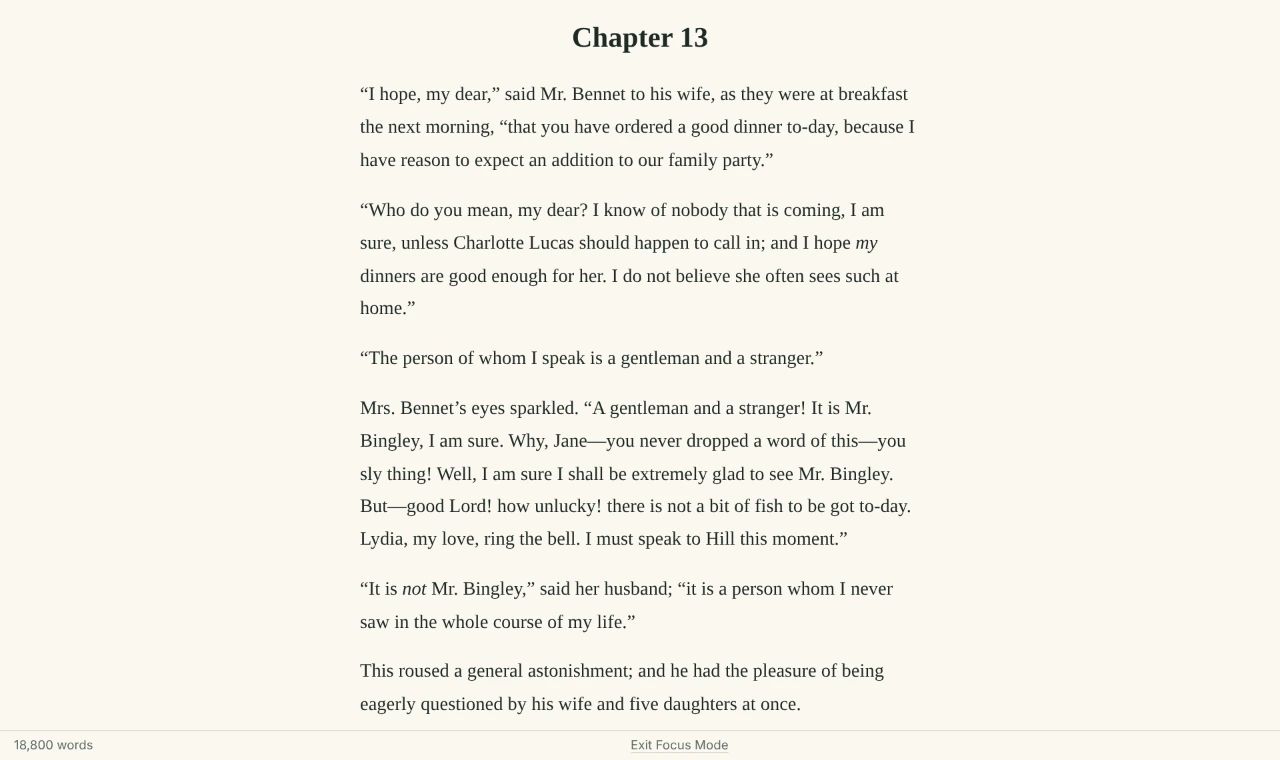
In Falcontext Perch, the web app, Focus Mode is for a manuscript in its writing pad: click Focus in the pad’s bar, or on the Write tab. The page goes full screen where your browser allows it (an iPhone doesn’t, so there the page simply clears), the panel steps aside and the pad hides its bars. Only the quiet line at the bottom stays, with your words, and no badge. Tap Exit Focus Mode there, or press Esc, to come back. On an iPad, a swipe down only leaves full screen (that’s Safari’s own gesture): you stay in Focus Mode until you tap Exit Focus Mode. A Google Doc is written in the Google Docs app, so it has no Focus Mode in the web app.
What it doesn’t do
Honest bit: Focus Mode pauses Falcontext’s own writing reminder. But a browser extension can’t silence your email, your chats or your other apps.
So for those, turn on your computer’s own Do Not Disturb or Focus too.
On a Mac
The first time, macOS wants to know that Falcontext may switch your writing app’s view: allow it under System Settings → Privacy & Security → Accessibility. Falcontext points you to the right spot.
- Plan
- Pro Part of Pro ($1.99/month or $19.99/year, with a free trial).
- Works in
- the browser extension (Chrome, Edge, Brave, Arc and Firefox), the desktop app for Mac and Windows and Perch, the web app (for its writing pad).
Questions about Focus Mode.
How do I leave Focus Mode?
Click Exit on the small progress badge in the corner, or press Esc. In the desktop app, click Exit on the badge. In Perch, the web app, click Exit Focus Mode in the line at the bottom, or press Esc.
Does Focus Mode block notifications?
It pauses Falcontext’s own writing reminder. Other apps’ notifications are out of a browser extension’s reach, so turn on your system’s Do Not Disturb or Focus for those.
Related
Your next chapter starts today.
Set a goal, open your draft and let the checks look over your shoulder.
Add to Chrome – it's freeOr get the desktop app or Perch, the web app.
Free forever plan · No sign-up · Pro from $1.99/month with a free trial