Word count tracker for ScrivenerScrivener holds your book. Falcontext reads the whole story.
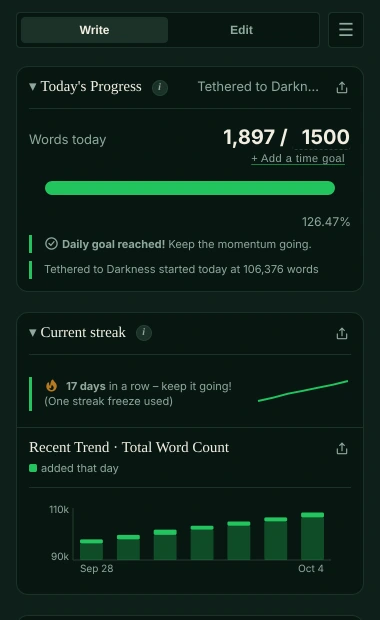
Scrivener holds your book and its word count; Falcontext tracks your days beside it: what you wrote today, your goal, your streak, a finish date. Plus your binder as an outline, your cast, and prose checks.
For Macs with Apple silicon or Intel (macOS 10.13 or later) and Windows 10 and 11 (64-bit).
How to see the word count in Scrivener.
Scrivener tracks words in a few places:
-
The editor’s footer
The bar under the text you’re writing shows its words and characters. Select some text and it counts just that.
-
Project → Project Statistics
The word count of the whole draft, or of the documents you’ve selected in the binder.
-
Project → Project Targets
Your draft’s target and today’s session target, with a bar for each.
What it doesn’t give you is a streak, a finish date, or one history across all your projects. That’s what Falcontext adds, with a character tracker and prose checks beside it.
What Falcontext adds to Scrivener.
Scrivener gives you a word count
- Project and session targets for the draft
- A writing history of the words written per day
- Composition Mode for writing without distractions
Falcontext adds
- A streak on top of your history. Scrivener knows what you wrote each day. Falcontext turns that into a streak, with one missed day forgiven.
- A finish date. Your daily goal and total goal, and when you’ll reach the end at the pace you’re writing.
- Your binder as an outline. Bird’s Eye shows every chapter folder and scene from the Draft with its word count, and how each measures up to your target.
- Your cast, scene by scene. Scrivener’s binder already splits your book into scenes, so the character tracker can show who’s in each one, and who’s been gone too long.
- Checks Scrivener doesn’t have. Dialogue tags, filter words, tense slips, crutch words, pacing per chapter: checks on the whole Draft, many free, all run on your computer. No AI is used on your writing.
- More than one project? A trilogy in three projects, a short story in Word, a blog in Google Docs: one streak and one history for all of them, and a book across several projects as one manuscript (Pro).
- Focus mode. Switches Scrivener into Composition Mode, with today’s words in a small badge in the corner (Pro).
Falcontext reads the project after Scrivener saves it and leaves every file in it as it was. Your writing is never sent anywhere, and no AI is used on your writing in any way. How your data is handled.
How to track your daily word count in Scrivener.
Once it’s set up, Scrivener’s own autosave does the rest.
-
Download Falcontext for Mac or Windows
A free download from this site; new versions install themselves.
Download – it’s free -
Add your Scrivener project
Choose Add…: your recent Scrivener projects are suggested, or choose one yourself (on Windows, the project’s .scrivx file). Start a new project and Falcontext offers to add it.
-
Set your goals
Your words a day and the draft’s length go where the numbers follow the slash. They can match your Scrivener targets, or not.
-
Write in Scrivener as you always do
Scrivener saves by itself a moment after you stop typing, and Falcontext counts it then. Closing Falcontext’s window keeps it tracking.
Good to know.
- What’s counted: everything in the Draft (Manuscript) folder, whether or not it’s set to be included in the compile – the same as Scrivener’s own writing history. Research and notes aren’t counted.
- Also writing in a browser? With sync on, the extension and Perch, the web app, share this streak and history, kept in your own Google Drive.
- Also in the desktop app: Microsoft Word, LibreOffice Writer and, on the Mac, Apple Pages and Vellum.
Learn more.
Everything here works in Scrivener too.
How it works
Checks writers start with
Your next chapter starts today.
Set a goal, open your draft and watch the words add up.
Download for Mac or WindowsOr see every editor Falcontext works with.
Free forever plan · No sign-up · Pro from $1.99/month with a free trial