Word count tracker for Google DocsYour Google Doc holds the draft. Falcontext finds the slips.
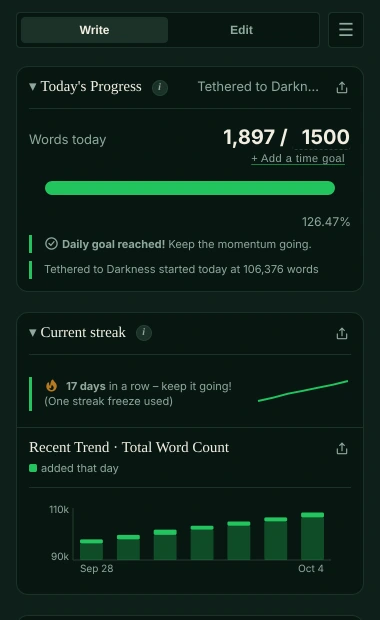
Google Docs gives you a word count for the whole document. Open Falcontext beside your Doc and see today: words written, your goal, your streak, the day you’ll finish. Chapters, characters and prose checks are a tab away.
On a phone? Falcontext Perch, the web app, counts your Google Docs there.
Want the full toolset? Try Pro for free →
How to see the word count in Google Docs.
Google Docs counts your words for you; here’s where to find it.
-
Tools → Word count
Or press Ctrl+Shift+C (⌘+Shift+C on a Mac). Select some text first to count just that part.
-
Keep the Google Docs word count on screen while you type
In the same box, tick Display word count while typing: the count stays in the bottom-left corner of your doc.
-
On a phone or tablet
In the Google Docs app, tap the three dots (⋮), then Word count.
Useful, but it’s the total. Google Docs can’t tell you how much of it is today’s.
What Falcontext adds to Google Docs.
Google Docs gives you
- A document’s total word count (Tools → Word count)
- An optional word count shown while you type
- Headings and an outline you set up yourself
Falcontext adds
- Today, live. The count of what you added today moves as you type, against your daily goal and your total, with a finish date that follows your pace.
- Counted even when the panel’s shut. Turn on “Count without opening Falcontext” and a writing day in Google Docs still counts towards your streak.
- Documents with tabs, counted as one. Multi-tab documents are tracked across every tab, live, through the Docs API.
- An outline you don’t have to build. Chapters and scene breaks are found for you, each with its word count and how it measures up to your target.
- Characters across your Doc. Pick the names that matter and see which chapters they’re in, and who’s been off-stage too long.
- Fix it in the Doc. A straight quote, a doubled “the”, a stray space: one click puts it right in the Doc itself, and Undo puts it back. Many of the checks are free.
- Focus mode. Your document fullscreen, the dashboard tucked away, the numbers one glance away (Pro).
Falcontext can only open the Google Docs you choose in Google’s own file picker – nothing else in your Drive. Your writing is never sent anywhere, and no AI is used on your writing in any way. How your data is handled.
How to track your daily word count in Google Docs.
A minute in Chrome, once. From then on your Doc is counted as you type.
-
Add Falcontext to your browser
Free for Chrome, Edge, Brave and Arc from the Chrome Web Store, and for Firefox from Firefox Add-ons. No Falcontext account needed.
Add to Chrome – it's free -
Open your Google Doc and click the falcon icon
Falcontext opens beside your document. Pin it to your toolbar (the puzzle-piece icon, then the pin) so it’s one click away.
-
Allow the document, once
The first time, Google asks you to sign in and to allow this document in its own file picker. Falcontext can only read the documents you pick there, and nothing else in your Drive.
-
Give yourself a goal
Click the numbers after the slash for a daily goal and a total. Then write: the count moves as you type.
On a phone or tablet? Perch, the web app, counts your Google Docs there too, with nothing to install.
Learn more.
Everything here works in Google Docs too.
How it works
Checks writers start with
Your next chapter starts today.
Set a goal, open your draft and watch the words add up.
Add to Chrome – it's freeOr get the desktop app or Perch, the web app.
Free forever plan · No sign-up · Pro from $1.99/month with a free trial