Word count tracker for Microsoft WordWord checks your grammar. Falcontext checks your story.
Microsoft Word shows the word count of your whole document. Falcontext sits in a small window beside it and tells you what Word can’t: how many words you wrote today, whether you hit your goal, and when this book will be done.
Runs on Windows 10 and 11 (64-bit), and on any Mac from macOS 10.13, Apple silicon or Intel.
How to see the word count in Microsoft Word.
Word keeps a running count. Two places to look:
-
The word count in Word’s status bar
The count is in the bar at the bottom of the window. Not there? Right-click that bar and tick Word Count. Select some text and it shows how many of the words are selected.
-
Review → Word Count
For pages, characters and paragraphs too. On Windows, Ctrl+Shift+G opens it.
Handy. But Word has no idea how many of those words are from today.
What Falcontext adds to Word.
Microsoft Word gives you a word count
- The length of the document (status bar, or Review → Word Count)
- Headings and the Navigation pane, set up yourself
- Spelling and grammar, built in
Falcontext adds
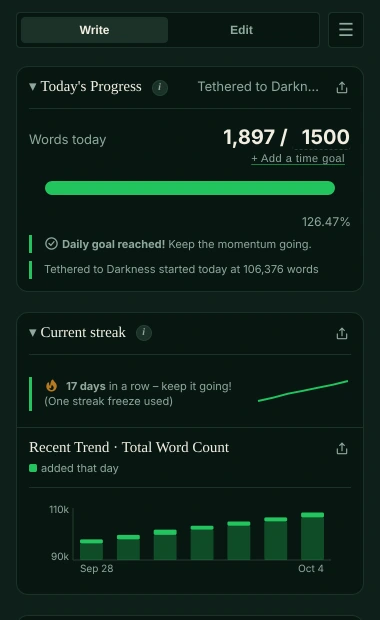
- What changed today. Word shows how long the document is. Falcontext remembers how long it was this morning, so you see what you added today, against your daily goal, and when you’ll finish at this pace.
- Heading 1 becomes a chapter list. Use Word’s heading styles for your chapter titles and Bird’s Eye lists every chapter with its length and your target: the Navigation pane, with numbers on it.
- A book in twenty files? Plenty of writers keep one chapter per .docx. Group them into one manuscript with one goal and one count (Pro), with your Scrivener projects and Google Docs alongside if you have them.
- Checks for fiction, not for memos. Word’s spelling and grammar check stays where it is. Falcontext adds the ones a novel needs: tense slips that leave dialogue alone, dialogue tags, filter words, telling emotions. 9 of the 38 are free.
- Who’s in chapter twelve? The character tracker shows who appears in which chapter, and who hasn’t been seen for a while.
- A streak with a day of grace. Miss a day and it survives. Miss two and it starts again.
- Focus mode. Word fills the screen with the ribbon tucked away, and today’s words in a small badge in the corner (Pro).
Falcontext opens the .docx after Word saves it, counts it, and leaves it exactly as it was. Your writing is never sent anywhere, and no AI is used on your writing in any way. How your data is handled.
Tracking your daily word count in Microsoft Word.
Set it up once. After that, every save counts.
-
Download Falcontext for Mac or Windows
Free, from this site, and it updates itself.
Download – it’s free -
Add your Word document
Choose Add…: Falcontext lists the Word documents you opened lately. Pick one, browse for another, or drag it onto the window. New ones show up on their own.
-
Pick your goals
A daily goal, and the length you’re aiming for: click the number after the slash to change it.
-
Back to Word
Each save in Word is a fresh count. Close Falcontext’s window if you like: it carries on counting.
Good to know.
- Which files: Word documents (.docx). LibreOffice Writer documents (.odt) work the same way.
- Chapters: use Word’s heading styles for your chapter titles, and Bird’s Eye lists them for you.
- Word at home, Google Docs on the go? Turn on sync and one streak follows you between the desktop app, the browser extension and Perch, the web app, through your own Google Drive.
- Same app, other editors: Scrivener, LibreOffice Writer and, on the Mac, Apple Pages and Vellum.
Learn more.
Everything here works in Word too.
How it works
Checks writers start with
Your next chapter starts today.
Set a goal, open your draft and watch the words add up.
Download for Mac or WindowsOr see every editor Falcontext works with.
Free forever plan · No sign-up · Pro from $1.99/month with a free trial