Help › Customize layout Pro
Customize layoutYour cards, your order.
Customize layout puts Falcontext’s cards in the order you use them, on each tab, and hides the ones you don’t need.
How to customize your layout
- Click ↕ Customize layout at the top of the Write or Edit tab.
- Each card gets a small bar: ▲ and ▼ move it one place up or down, Hide hides it.
- Click Done arranging.
Every change is saved straight away.
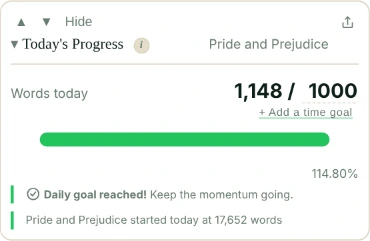
Getting a hidden card back
Hidden cards are never deleted, nor is anything in them. Click Customize layout again: the hidden ones are back in their place, dimmed, with a Show button. Click it, then Done arranging.
Which cards you can move
Today’s Progress, Overall Progress, Current streak, Estimated Completion Date and Personal Records, on both tabs. On the Write tab also the Sprint, Focus and Synonyms buttons, You’re in and Slips as you write; on the Edit tab, Bird’s Eye, Prose Analysis and Characters.
Each tab has its own layout. A card you hide on the Write tab still shows on the Edit tab.
On each device
Your layout stays on the device where you made it; it isn’t part of sync or a backup. If Pro ends, Falcontext shows the standard layout again, and keeps yours for when you’re back.
- Plan
- Pro Part of Pro ($1.99/month or $19.99/year, with a free trial).
Questions about your layout.
Can I bring a hidden card back?
Yes. Click Customize layout, then Show on the dimmed card, then Done arranging. Nothing in it was deleted.
Is my layout the same on every device?
No, it’s kept on the device where you made it, and each tab has its own.
Related
Your next chapter starts today.
Set a goal, open your draft and let the checks look over your shoulder.
Add to Chrome – it's freeOr get the desktop app or Perch, the web app.
Free forever plan · No sign-up · Pro from $1.99/month with a free trial